If you have never used ComfyUI before, the fastest way to see what it can make is to start from a workflow that already ran to completion, rather than wiring custom nodes and hunting models by hand.
Pick the output you want to try in Google Colab:
| What you want to make | Direct Colab entry | Size & hardware notes |
|---|---|---|
| Images from a prompt | FLUX.2 Klein 4B · Z-Image-Turbo | Klein: 12.5 GB (Colab T4 not timed yet). Z-Image: 20.70 GB (10–11 min on standard-memory T4 with --force). |
| Short video from a prompt | Wan 2.2 TI2V 5B | 18.2 GB, restored on 24–32 GB GPUs (Colab T4 not timed yet). |
| Animate a character from video | Wan Animate 2 | 24.9 GB, requires >15 GB VRAM (A40 / A100-class GPU) and a paid Renest plan. |
Or browse all four side by side on /colab (https://renest.ai/colab).

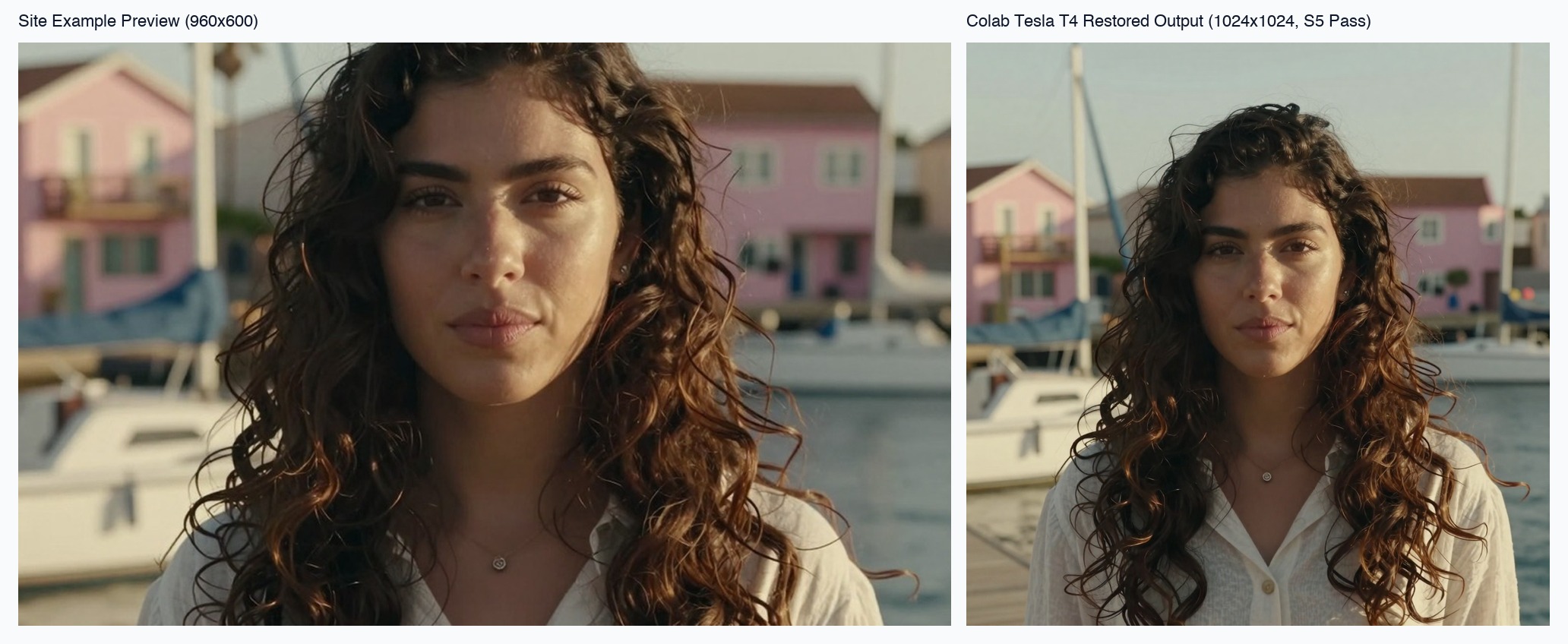
Above is what came straight out of Z-Image-Turbo in one of our two standard-memory Colab T4 runs (15,360 MiB VRAM, 12.7 GiB host RAM, run with --force to pass the 15.4 GiB host RAM floor). Both timed runs produced a 1024 × 1024 image in about 10–11 minutes on an account with a positive compute-unit balance — not an unpaid zero-balance free Google account, which we note clearly in the step-by-step guide below.
The common workflow (5 steps for all 4 setups)
Whichever workflow you pick above, the path in Colab is the same:
- Pick a setup and get a Colab restore code. On /colab or app.renest.ai/colab, click Try in Colab on the workflow you want. After signing in with a free account (
FLUX.2 Klein 4B,Z-Image-Turbo, andWan 2.2 TI2V 5Bare free to claim;Wan Animate 2requires a paid plan), Renest copies a 7-day restore code to your clipboard and gives you an Open Colab Notebook button.
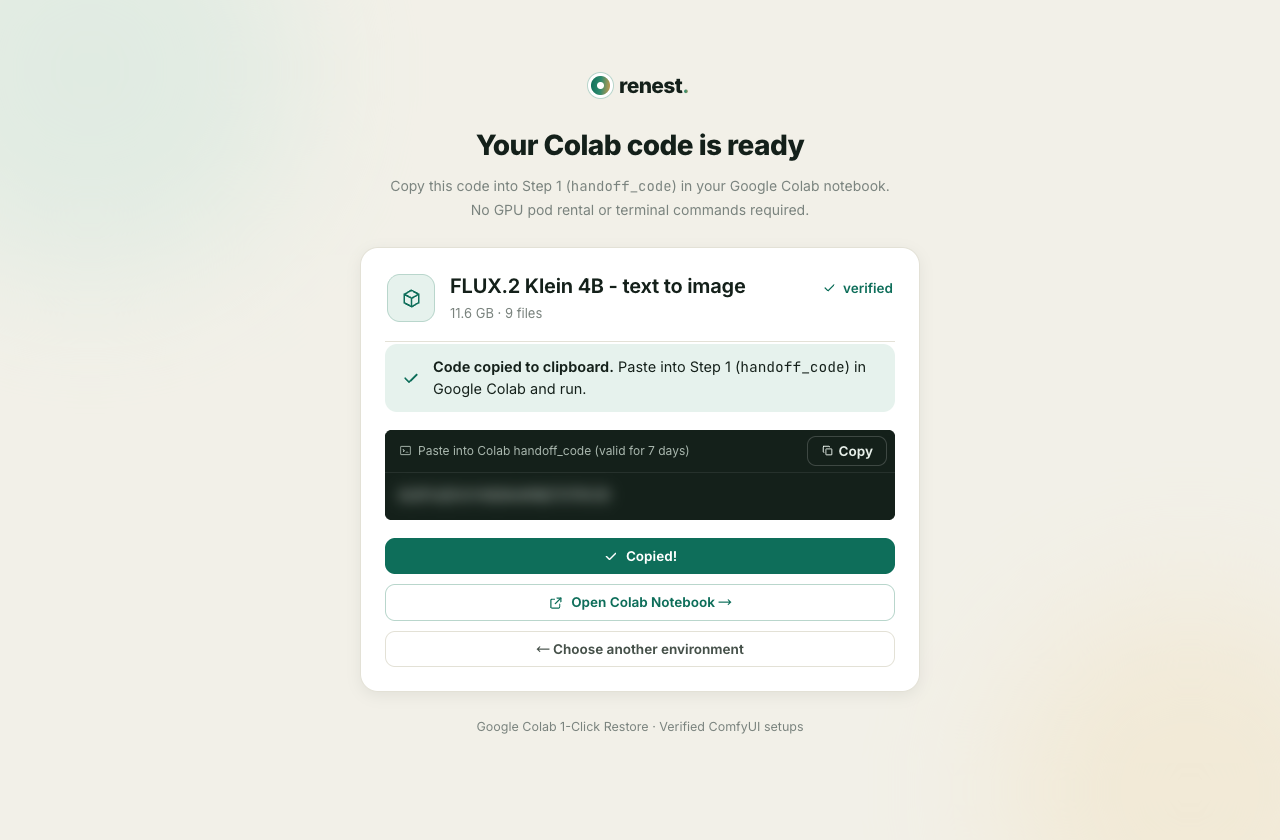
(Shown above with FLUX.2 Klein 4B only to illustrate the code-issuing screen; the blurred box holds the restore code, and the timed Colab runs in the second half of this post used Z-Image-Turbo.)
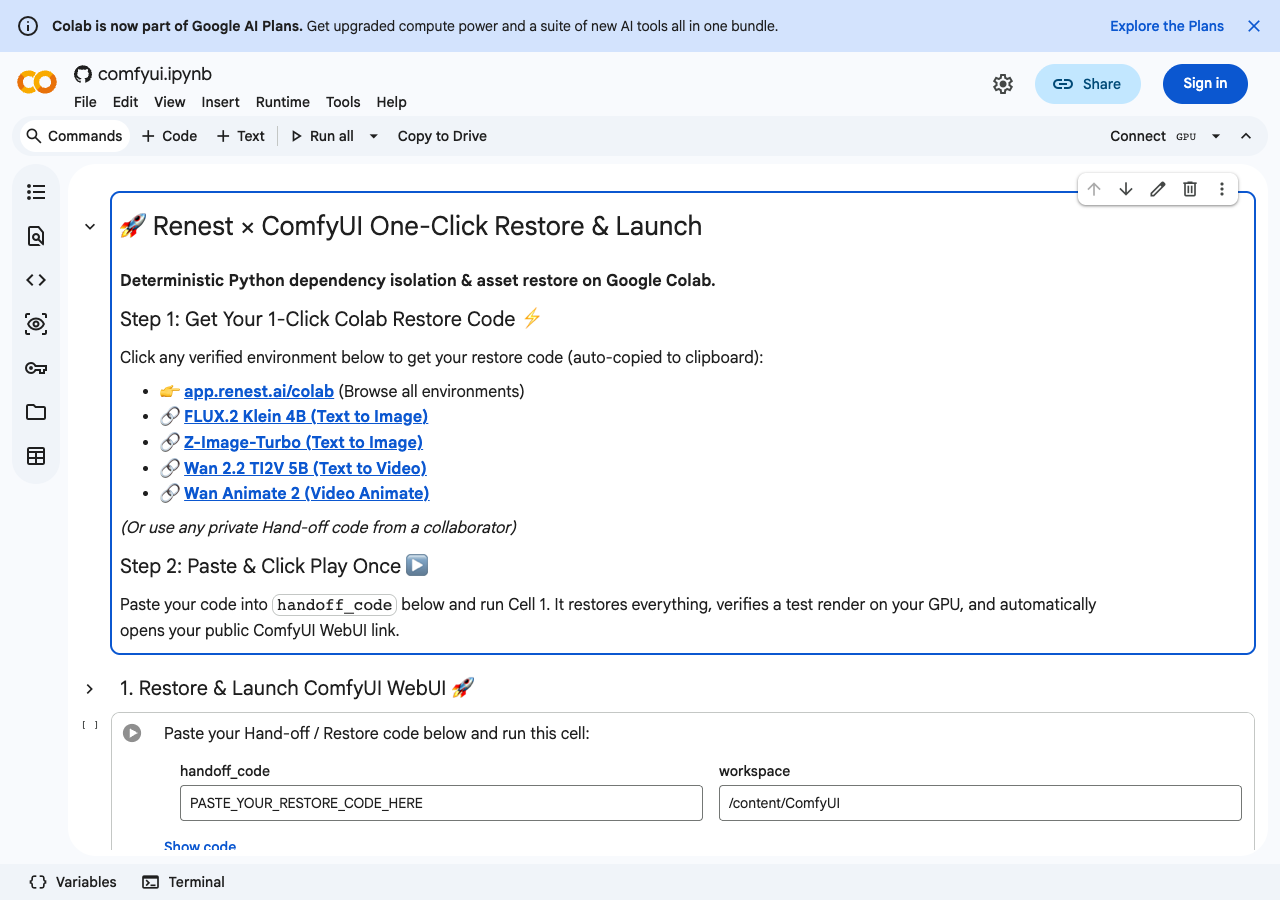
- Switch Colab to a GPU and paste the code. Opening the link loads renest-ai/renest-notebooks/colab/comfyui.ipynb. Set Runtime → Change runtime type to a GPU (such as
T4 GPU), paste your code intohandoff_code, and click Play on Cell 1. No manualgit clone, folder sorting, or SSH terminal is needed.
-
Wait while Renest restores, checks, and tests. Cell 1 installs
renest, checks the runtime's GPU/driver/CPU (S0), downloads the setup's files (S1), verifies SHA-256 checksums on disk (S2), rebuilds its isolated Python environment withuv(S3), starts ComfyUI (S4), and executes the original workflow once (S5). -
Layer 1 — See the first verified output right inside the notebook. As soon as
S5finishes, Cell 1 displays the rendered image inline inside the Colab cell output (Verified out-of-the-box render), along with a plain notice if--forcebypassed any host machine floor check. -
Layer 2 — Open the full ComfyUI WebUI, change a prompt, and run again. Next, the launcher (
renest_colab.py) downloadscloudflared, keeps ComfyUI listening locally on127.0.0.1:8188, opens an HTTP/2*.trycloudflare.comtunnel, and polls/system_statsuntil HTTP 200 before printing Open ComfyUI and Copy URL. If clicking Open ComfyUI inside Colab returns403, click Copy URL and paste it into a new browser tab's address bar.
Account policy note (Google Colab FAQ): Google states that on free-of-charge managed runtimes without a positive compute-unit balance, bypassing the notebook UI to interact primarily via a Web UI is disallowed and runtimes may be terminated without warning; purchasing a paid plan with a positive compute-unit balance lifts that restriction. Because our measured runs used an account with compute units (329.65 → 327.01 across the entire session), we have not yet tested an unpaid zero-balance free account end to end.
Inside one full Colab test: Z-Image-Turbo (20.70 GB) on standard-memory T4
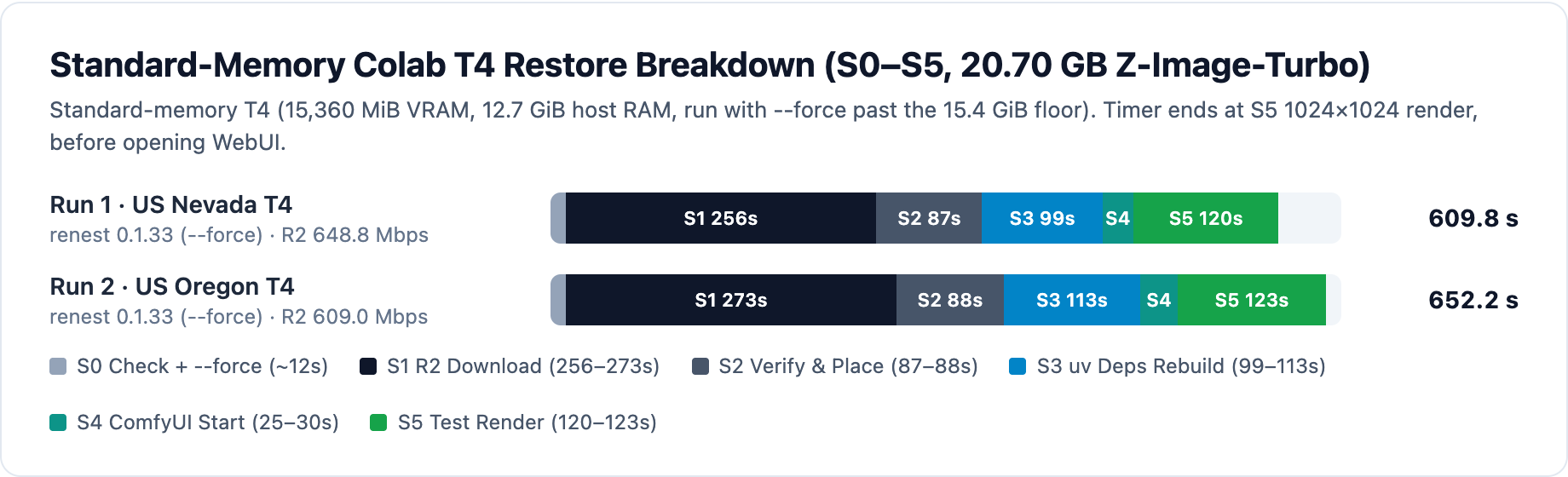
To measure what actually happens during the wait instead of guessing, we timed cold end-to-end restores (renest 0.1.33 --force) of Z-Image-Turbo - text to image (20,702,870,361 bytes, 9 assets) on two standard-memory Colab Tesla T4 runtimes (15,360 MiB VRAM, 2 vCPU, 12.7 GiB host RAM, 235.58 GiB free disk):
| Stage | What happens | US Nevada T4 | US Oregon T4 |
|---|---|---|---|
S0 Check | Inspect GPU, CUDA driver, CPU avx2, disk, RAM floor (--force) | 12.4 s | 12.3 s |
S1 Download | Fetch all 9 assets (20.70 GB) from R2 with inline SHA-256 | 256.3 s (648.8 Mbps) | 273.1 s (609.0 Mbps) |
S2 Verify & Place | Place files on /content & re-read local SHA-256 | 87.3 s | 87.8 s |
S3 Dependencies | Rebuild isolated Python 3.11.10 env with uv | 99.3 s | 112.9 s |
S4 Start App | Boot ComfyUI on port 8188 & pass health check | 25.4 s | 30.5 s |
S5 Test Render | Execute recorded workflow on T4 (1024×1024 output) | 119.9 s | 122.7 s |
Total (S0–S5) | Cold VM to saved 1024×1024 image (rc=0) | 609.8 s (10m10s) | 652.2 s (10m52s) |
Three important boundaries around those measurements:
- Timing ends at
S5image save:609.8 sand652.2 sstop when the1024 × 1024test image (z-image-turbo_00001_.png,1,252,594bytes) finishes writing — before launching and opening ComfyUI in a browser tab. --forcebypassed the host RAM floor: Colab's standard T4 runtime enforces a12.7 GiBcgroup host RAM limit without swap, below Z-Image-Turbo's15.4 GiBpre-check floor, so--forcewas needed to continue.- Compute unit cost: At T4's
1.15 CU/hrbilled rate, an 11-minute restore-to-render window estimates by rate × time to roughly0.21 CU(1.15 × 11 / 60). Across the whole multi-run benchmark session (including Drive pre-staging, retries, and idle waiting), account balance dropped2.64 CU(329.65 → 327.01), so~0.21 CUis a rate×time estimate rather than an isolated single-run bill.
Why Renest fetches from R2 instead of Google Drive (20.69 GB same-VM test)
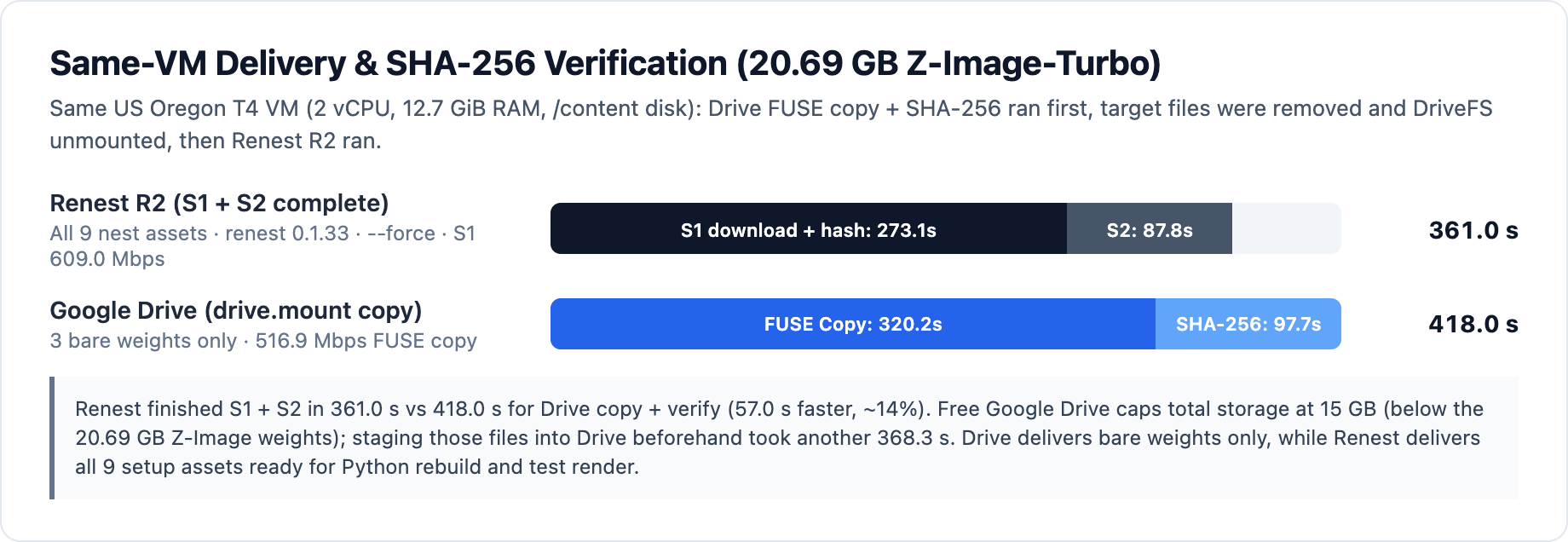
Many Colab guides recommend copying checkpoints from Google Drive (/content/drive). To measure the real difference, we ran both on the exact same cold US Oregon T4 VM (15,360 MiB VRAM, 2 vCPU, 12.7 GiB RAM, /content disk): Google Drive (drive.mount FUSE copy + fsync + SHA-256) ran first, target files were deleted and DriveFS unmounted, and Renest R2 (renest 0.1.33 --force) ran next.
The weights tested were Z-Image-Turbo's three safetensors files (20,690,152,836 bytes: z_image_turbo_bf16.safetensors 12.31 GB, qwen_3_4b.safetensors 8.04 GB, and ae.safetensors 335 MB):
| Method on the same Oregon T4 VM | What it delivered | Breakdown | Total |
|---|---|---|---|
Renest R2 (S1 + S2, renest 0.1.33 --force) | All 9 setup files downloaded, checked, & placed | S1 download & hash 273.1 s (609.0 Mbps) + S2 disk re-verify 87.8 s | 361.0 s (6m01s) |
Google Drive (drive.mount FUSE copy + verify) | 3 bare .safetensors weights only | FUSE copy 320.2 s (516.9 Mbps) + SHA-256 97.7 s | 418.0 s (6m58s) |
- Same-VM delta:
57.0 sfaster (~14%). Comparing full R2 download + local disk check (361.0 s) against Drive FUSE copy +SHA-256(418.0 s), Renest finished faster while delivering all 9 assets ready for ComfyUI instead of three bare model files. (S1finished initial download + inline digest at273.1 s, followed byS2's87.8 sdisk re-verify in0.1.33.) - 15 GB free Drive limit: Free Google accounts share a
15 GBstorage ceiling across Gmail, Photos, and Drive, so20.69 GBof Z-Image-Turbo weights does not fit without a paid Drive plan. Pre-staging those files into Drive beforehand also took368.3 s. - Output sanity check: Placing the Nevada T4
1024 × 1024output next to the site preview (originally packed on an NVIDIA A40), both show the same subject, lighting, and dockside pink houses — confirming the restored workflow executes end to end on T4 rather than claiming identical cross-GPU pixels (see three gates, not an exit code).
Six Colab runtime notes from these runs
- Watch
12.7 GiBhost RAM, not just15 GiBVRAM. Colab standard T4 VMs give you15,360 MiBVRAM and235.58 GiBephemeral/contentdisk, but a12.7 GiBhost RAM ceiling without swap. Z-Image-Turbo ships a BF16 diffusion model (z_image_turbo_bf16.safetensors,12.31 GB), not FP8; bypassing its15.4 GiBfloor check with--forceworked here, though host RAM headroom stays tight if you add extra nodes or loaders. - Keep Python isolated from Colab's base image. Setting
UV_SYSTEM_PYTHON=0andUV_NO_CONFIG=1letsuvrebuild an isolatedPython 3.11.10virtualenv inS3without colliding with Colab's preinstalled packages. - Don't run weights straight off
/content/drive. Mounted Drive uses FUSE (418.0 scopy + verify,516.9 Mbps), and free Drive caps at15 GB. - Local
/contentdisk SHA-256 hashes at ~210–235 MB/s. Measuring rawfile_digestacross those20.69 GBweights took91.6 s(Nevada) and97.7 s(Oregon), matchingS2's87–88 slocal re-check. - Disconnect and delete the runtime when finished. Active runtimes keep billing compute units while open; shut down from Runtime → Disconnect and delete runtime when done.
- Why Copy URL sits next to Open ComfyUI. Colab's cell iframe can attach a
Refererheader that triggers403on tunnel links. Cell 1 renders links withreferrerpolicy="no-referrer", probes/system_statsthrough the public URL before displaying it, and provides Copy URL to paste straight into a fresh tab.
What this doesn't say
- Only
Z-Image-Turbowas timed end to end on Colab T4 here.FLUX.2 Klein 4BandWan 2.2 TI2V 5Bhave only been timed by us on rented GPUs so far (see Which ComfyUI setup should I start with), andWan Animate 2requires>15 GBVRAM and a paid plan — do not try it on a15 GBT4. - Zero-balance free Google accounts are not yet tested end to end. Both T4 tests used an account with compute units and
--force, and we did not time opening or interacting inside the browser WebUI tab. - The Oregon R2 vs Drive comparison ran sequentially on one VM (Drive first, target files removed and DriveFS unmounted, then Renest R2), because
/proc/sys/vm/drop_cachesis read-only inside Colab containers — so we report exact cleanup steps performed rather than claiming kernel page-cache resets.
Start from /colab to choose one of the four workflows, or read Try a starter nest and verified environments.